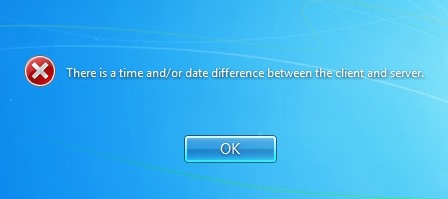
In a Windows Server environment with Active Directory (AD) login, a time mismatch between the client and server can lead to authentication issues, as Kerberos (the default authentication protocol for AD) requires time synchronization within a strict range, typically within 5 minutes. Here’s a tailored approach to resolve this issue:
### 1. **Sync Client Time with the Domain Controller (DC)**:
- Ensure the client machine is configured to synchronize its time with the domain controller, as AD environments depend on accurate time sync across all devices.
- Open Command Prompt on the client and run:
```bash
w32tm /resync
```
- This command forces the client to resynchronize its time with the domain controller.
### 2. **Ensure Domain Controller Time Synchronization**:
- The Domain Controller should be synchronized with a reliable external time source (NTP server). You can configure this by setting the DC to use an internet NTP server.
- On the domain controller, use the following command to configure an external time source:
```bash
w32tm /config /manualpeerlist:"time.windows.com,0x1" /syncfromflags:manual /reliable:YES /update
w32tm /resync
```
- Replace `time.windows.com` with your preferred NTP server if needed.
### 3. **Check and Correct Time Zone Settings**:
- Both the client and server should be in the correct time zone. Mismatched time zones can lead to noticeable time differences even if the actual time appears correct on each machine individually.
- Verify the time zone settings on both the client and the domain controller.
### 4. **Verify Group Policy Settings**:
- In some cases, Group Policy Objects (GPOs) might enforce specific time settings or interfere with time synchronization. Ensure there is no GPO restricting time sync for clients.
- To review these settings, go to **Group Policy Management Console (GPMC)** on the domain controller and check policies under **Computer Configuration > Policies > Administrative Templates > System > Windows Time Service**.
### 5. **Confirm Time Sync Across the AD Environment**:
- Use the following command to verify time sync status on the domain controller:
```bash
w32tm /query /status
```
- This should show that the domain controller is either synchronized with an external time source or acting as the authoritative time source for the domain.
### 6. **Restart Services if Needed**:
- If there are persistent issues, restart the **Windows Time Service** on both the client and server.
- Use the following command to restart the service:
```bash
net stop w32time && net start w32time
```
### 7. **Check Event Viewer for Errors**:
- Look for any time-related errors in **Event Viewer** on both the client and the server. Navigate to **Windows Logs > System** and look for events related to **W32Time**. This can give you more insight if the issue persists.
By following these steps, you should be able to resolve the time mismatch issue that’s affecting Active Directory authentication. Once time synchronization is restored, the client should be able to authenticate with the domain controller without further issues.